 Shortcut Actions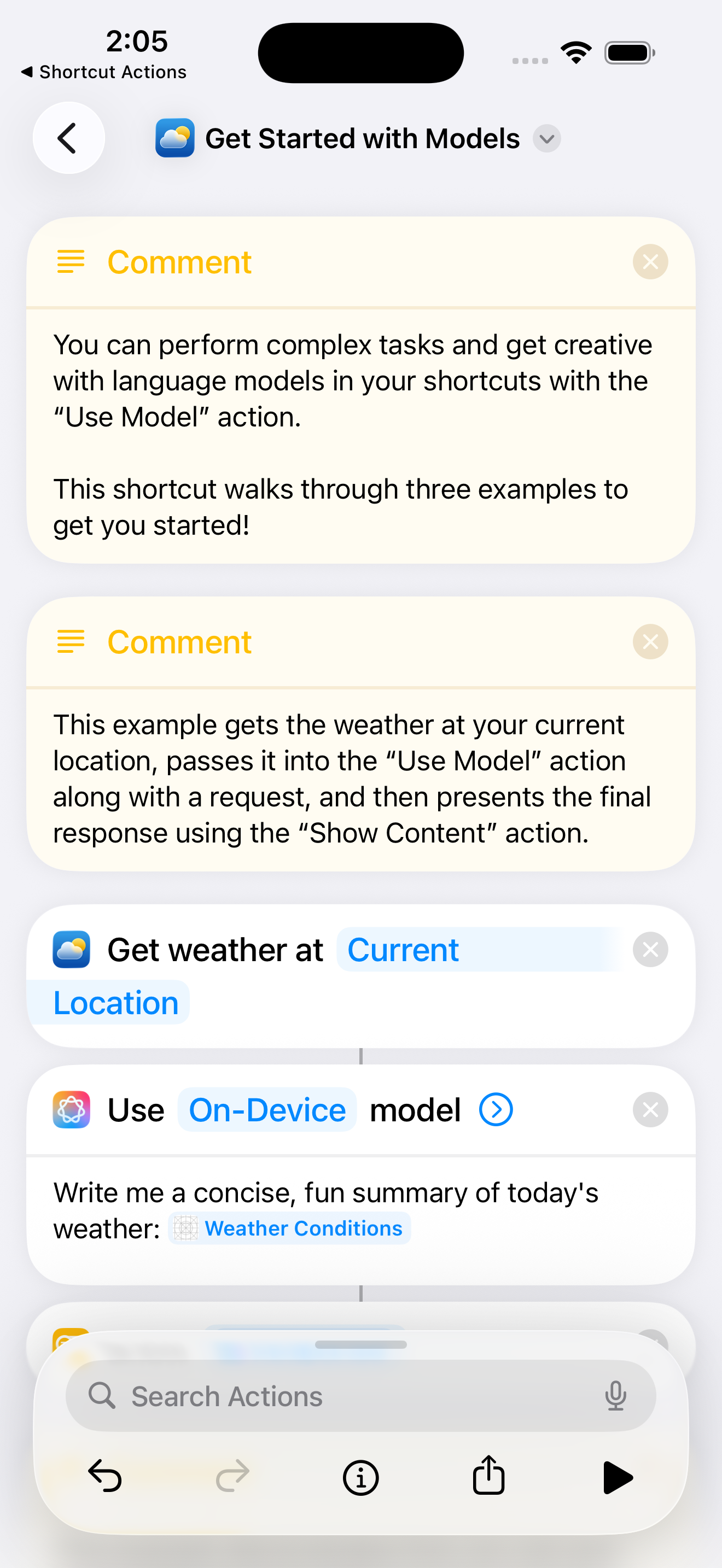
9 min read
How to Use Apple Intelligence in Your Shortcuts
By Shortcut Actions Team
|Published Monday, December 15, 2025
Apple Intelligence brings powerful on-device AI capabilities directly to your iPhone - and the best part? You can use it in your Shortcuts automations completely free, with full privacy, and no internet connection required.
In this beginner-friendly guide, you'll learn everything you need to get started with Apple Intelligence in Shortcuts: from basic requirements to building your first AI-powered automation, understanding limitations, and leveling up with advanced prompt management tools.
What is Apple Intelligence for Shortcuts?
Apple Intelligence is Apple's on-device AI system that runs a 3 billion parameter language model directly on your iPhone. With iOS 26, Apple opened this powerful capability to the Shortcuts app through the "Use Model" action.
This means you can now:
- Summarize long articles or emails automatically
- Extract key information from text
- Generate creative content like messages or notes
- Classify and categorize information
- Answer questions based on context you provide
All of this happens entirely on your device - your data never leaves your iPhone, there are no API costs, and it works offline.
Requirements
Before you can use Apple Intelligence in Shortcuts, you'll need:
Supported Devices
Apple Intelligence requires significant processing power. You'll need one of these devices:
- iPhone 15 Pro or iPhone 15 Pro Max
- iPhone 16, iPhone 16 Plus, iPhone 16 Pro, or iPhone 16 Pro Max
- iPhone 17 series (all models)
- iPad with M1 chip or later
- iPad mini with A17 Pro chip
- Mac with Apple Silicon (M1, M2, M3, M4 series)
Software Requirements
- iOS 26.0 or later (released September 2025)
- Apple Intelligence must be enabled in Settings
How to Enable Apple Intelligence
- Open Settings on your iPhone
- Tap Apple Intelligence & Siri
- Toggle Apple Intelligence to ON
- Wait for the model to download (this may take a few minutes on first setup)
Note: Apple Intelligence may not be available in all regions due to regulatory requirements. Check Apple's official support page for availability in your country.
Getting Started: The "Use Model" Action
The gateway to Apple Intelligence in Shortcuts is the "Use Model" action. Let's walk through how to use it.
Finding the Action
- Open the Shortcuts app
- Create a new shortcut or edit an existing one
- Tap the search bar and type "Use Model"
- Add the Use On-Device model action to your shortcut
Your First AI Shortcut
Here's a simple example that gets the weather and asks Apple Intelligence to write a fun summary:
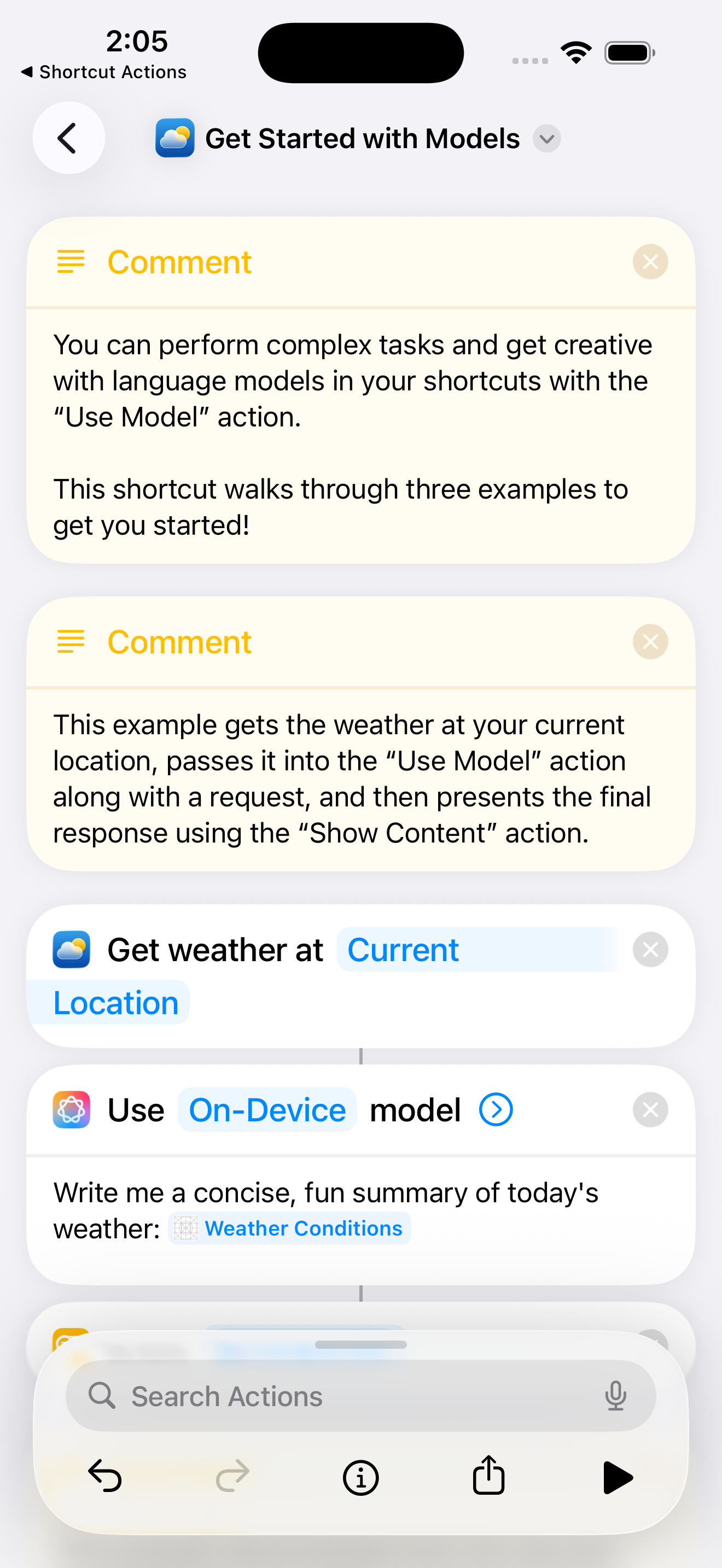
In this example:
- The Get weather action retrieves current weather conditions
- A Comment action explains what's happening
- The Use Model action takes the weather data and generates a "concise, fun summary"
- The result is shown using Show Content
Breaking Down the Use Model Action
The Use Model action has a simple interface:
- Model Selection: Choose "On-Device" (this is Apple's 3B parameter model)
- Prompt: Your instruction to the AI, including any data you want to process
You can pass variables into your prompt just like any other Shortcuts action, making it easy to process dynamic content.
Practical Examples
Here are some practical ways to use Apple Intelligence in your Shortcuts:
Example 1: Email Summarizer
Get Contents of Email
↓
Use On-Device model
  Prompt: "Summarize this email in 2-3 bullet points: [Email Content]"
↓
Show Result
Example 2: Meeting Notes Extractor
Get Text from [Notes App]
↓
Use On-Device model
  Prompt: "Extract action items and deadlines from these meeting notes: [Notes]"
↓
Add to Reminders
Example 3: Quick Reply Generator
Get Clipboard
↓
Use On-Device model
  Prompt: "Write a polite, professional reply to this message: [Clipboard]"
↓
Copy to Clipboard
Understanding Limitations
While Apple Intelligence is powerful, it's important to understand its limitations to use it effectively.
Context Window: 4,096 Tokens
The on-device model has a combined input and output limit of 4,096 tokens. This is a shared pool - if your prompt uses 3,000 tokens, you only have ~1,096 tokens left for the response.
Token estimation tips:
- English text: roughly 3-4 characters per token
- ~750-1,000 words equals ~1,000 tokens
- Keep prompts concise to leave room for responses
What It's Good At
Apple Intelligence excels at:
- Summarization - Condensing long text into key points
- Extraction - Pulling specific information from content
- Classification - Categorizing items into groups
- Rewriting - Changing tone, style, or format of text
- Simple Q&A - Answering questions based on provided context
What It's NOT Good At
The on-device model is not designed for:
- Code generation - Use external AI services for programming tasks
- Complex math - Don't rely on it for calculations
- World knowledge - It doesn't have access to the internet or current events
- Multi-step reasoning - Complex logic chains may fail
- Long conversations - The 4,096 token limit restricts extended back-and-forth
Privacy Advantage
Unlike cloud-based AI services:
- All processing happens on your device
- No data is sent to Apple's servers
- No API keys or accounts needed
- No usage costs - it's completely free
- Works offline without internet
Level Up: Advanced AI Prompt Management
While the native "Use Model" action works great for simple tasks, managing complex prompts directly in Shortcuts can be challenging. This is where Shortcut Actions transforms your AI workflow.
The Problem with Native Prompts
As your AI automations grow more sophisticated, you'll encounter these challenges:
- No reusability - You have to copy-paste prompts between shortcuts
- Hard to edit - Long prompts in the tiny Shortcuts text field are painful
- No variables - Dynamic prompts require awkward workarounds
- No organization - Prompts are scattered across different shortcuts
- No token awareness - Easy to exceed limits without knowing
The Solution: AI Prompt Editor
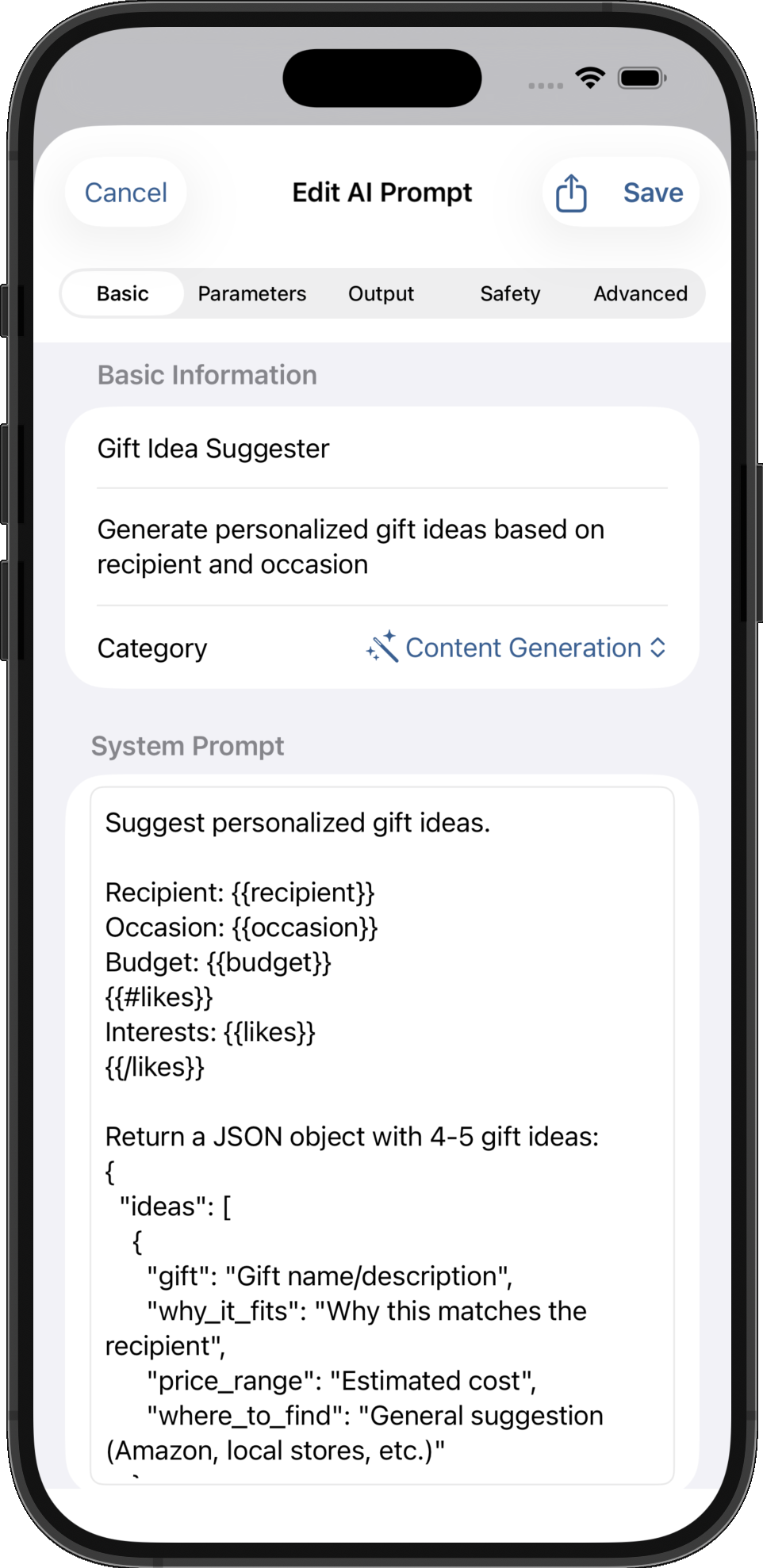
Shortcut Actions includes a professional AI Prompt Editor that makes creating and managing prompts easy:
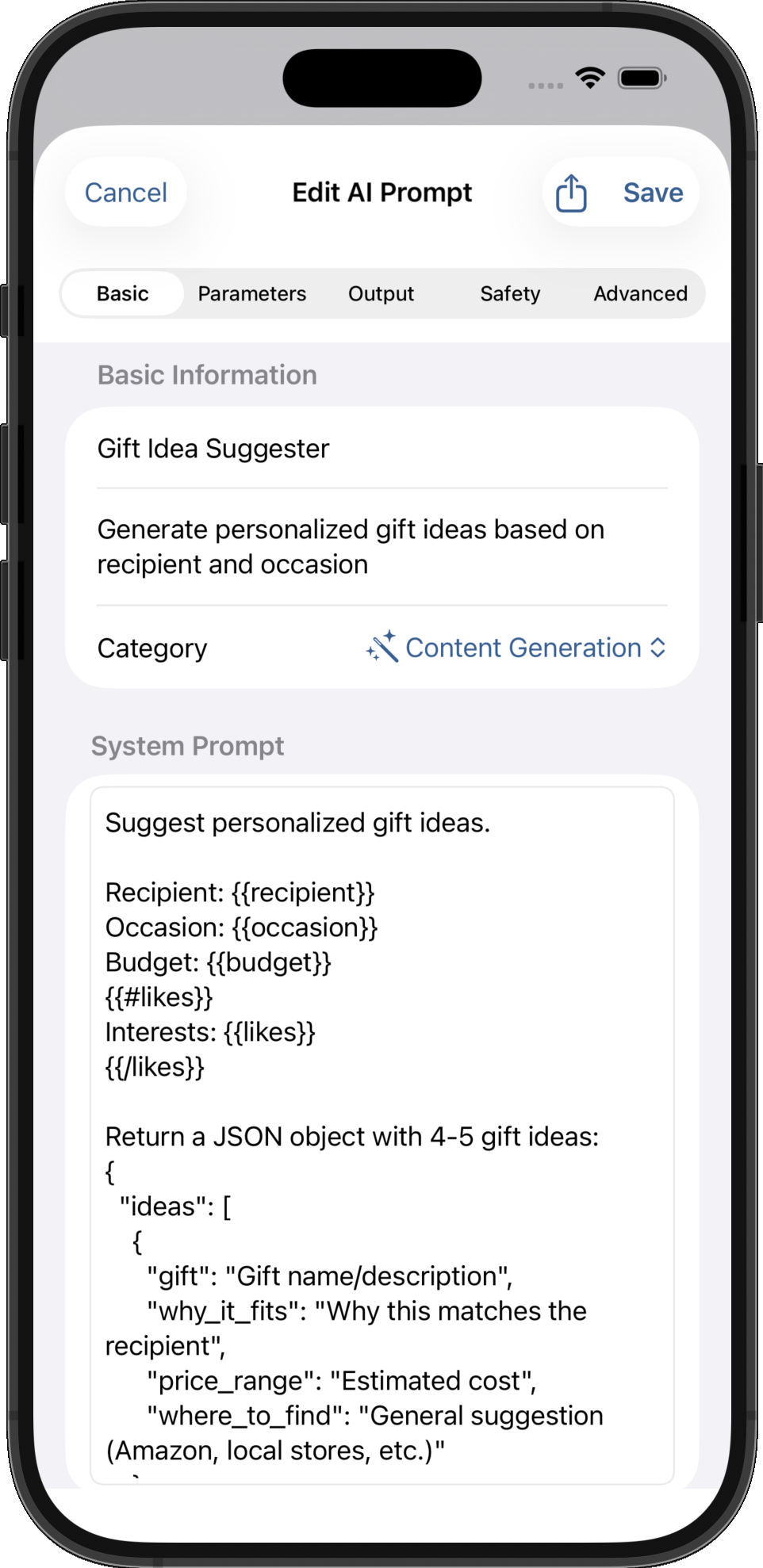
The editor provides:
- Multi-tab interface - Basic, Parameters, Output, Safety, and Advanced tabs
- Large text editor - Plenty of room to write and edit prompts
- Token estimation - See estimated token count as you type
- Variable detection - Automatically finds
{{variableName}}patterns in your prompt
Dynamic Parameters
One of the most powerful features is the Parameters system. Instead of hardcoding values, you can define input parameters that get filled in when the shortcut runs:
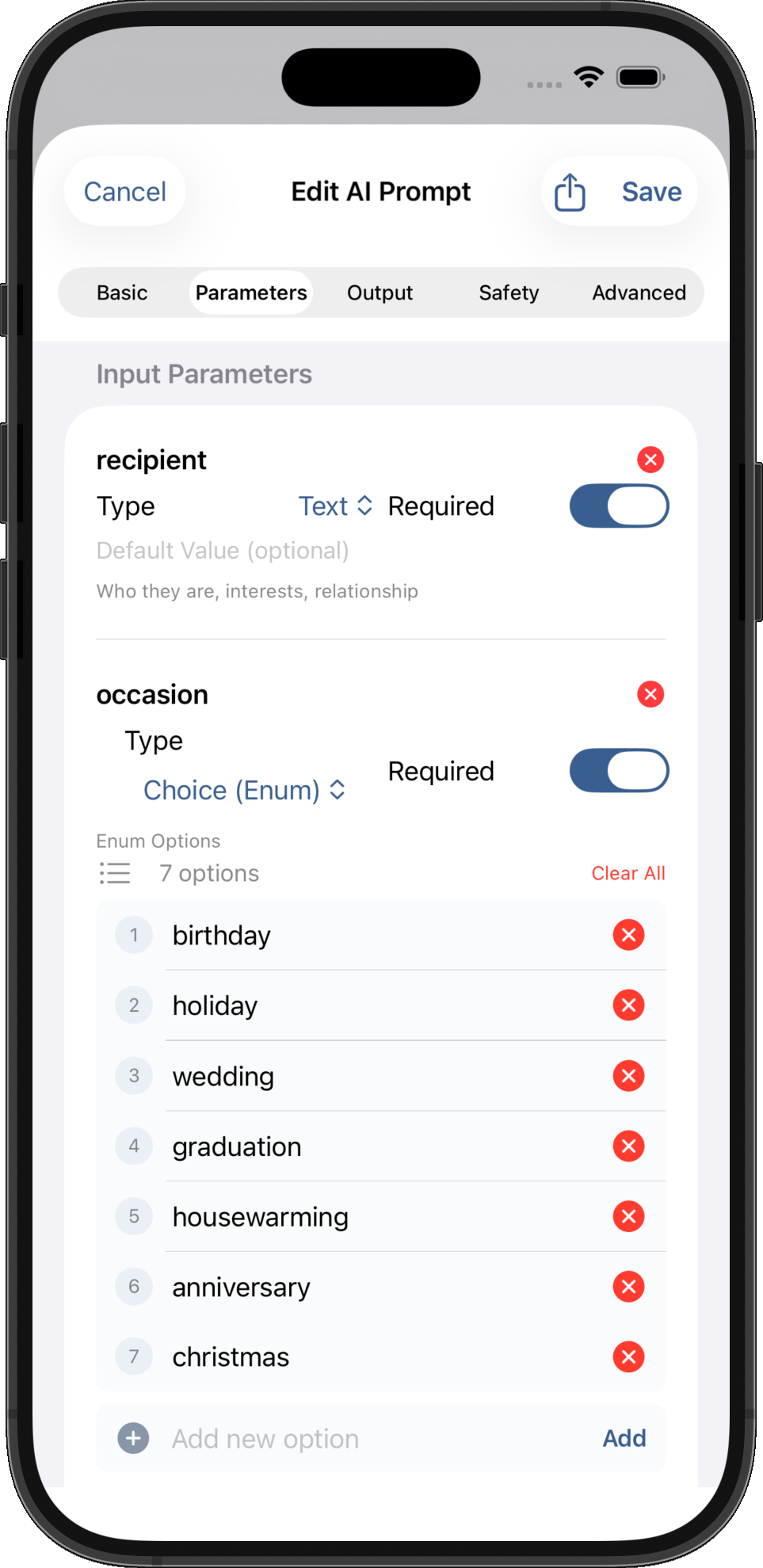
You can configure:
- Parameter name - The variable name used in your prompt
- Type - Text, Choice (enumeration), and more
- Required/Optional - Whether the parameter must be provided
- Enum options - Predefined choices like "birthday", "wedding", "holiday"
- Default values - Fallback when no value is provided
Ready-to-Use Templates
Don't want to write prompts from scratch? Shortcut Actions includes 30+ ready-to-use AI prompt templates across categories:
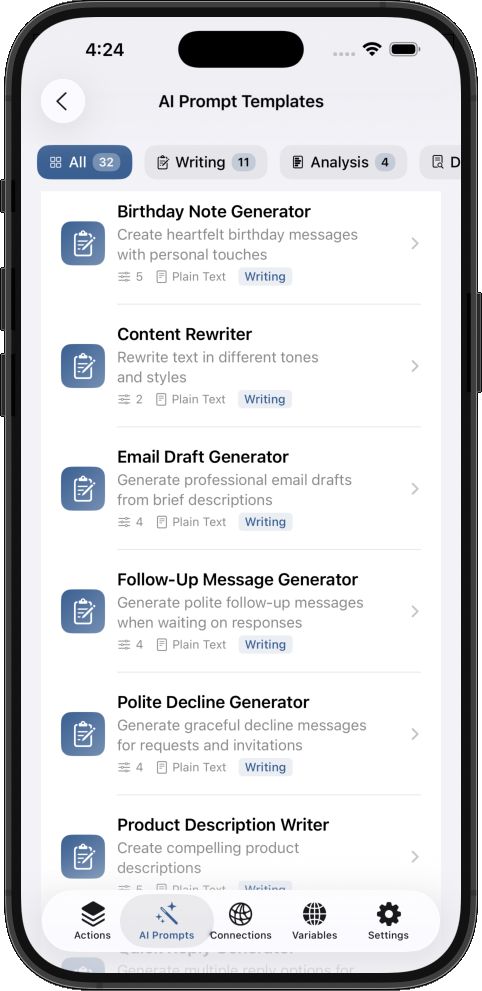
Template categories include:
- Writing - Email drafts, birthday notes, follow-up messages
- Analysis - Sentiment analysis, content review, summarization
- Data Extraction - Contact info, receipt parsing, meeting notes
- Content Generation - Product descriptions, social posts, creative writing
Each template includes a complete prompt with parameters already configured. Just tap Use Template to add it to your collection.
Template Preview
Before using a template, you can preview exactly what it does:
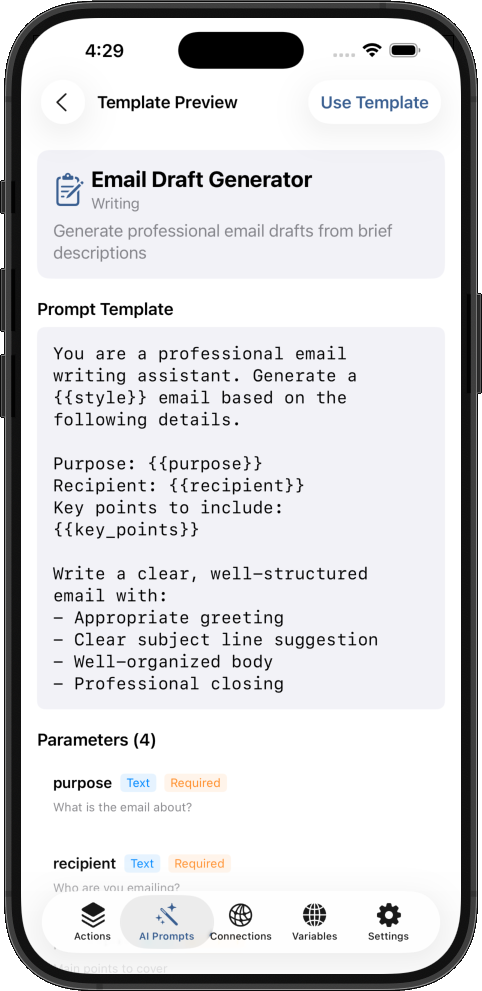
The preview shows:
- Full prompt template with variable placeholders
- All parameters with their types
- Description of what the template does
Why This Matters
With Shortcut Actions' AI Prompt management:
| Native Shortcuts | Shortcut Actions |
|---|---|
| Edit prompts in tiny text fields | Full-screen editor with syntax highlighting |
| Copy-paste prompts between shortcuts | Reusable prompt library |
| No variable support | Dynamic {{variables}} with types |
| No token awareness | Real-time token estimation |
| Start from scratch | 30+ ready-to-use templates |
| No organization | Categorized prompt library |
Best Practices
1. Keep Prompts Concise
With the 4,096 token limit, every word counts. Be direct:
❌ "I would like you to please summarize the following text for me
    in a way that captures the main points..."

✅ "Summarize in 3 bullet points:"
2. Use Apple Intelligence for Privacy-Sensitive Tasks
Since everything runs on-device, it's perfect for:
- Processing personal emails
- Analyzing health or financial data
- Working with confidential documents
3. Combine with External APIs When Needed
For complex tasks, use a hybrid approach:
- Apple Intelligence for initial classification or summarization
- External AI (OpenAI, Anthropic) for complex reasoning when needed
4. Test with Different Inputs
The on-device model may handle some content differently than cloud models. Always test your shortcuts with various inputs before relying on them.
5. Provide Context in Your Prompts
The model only knows what you tell it. Include relevant context:
❌ "What should I reply?"

✅ "I received this business email asking about project timelines.
    Write a professional reply confirming the March deadline: [Email]"
Conclusion
Apple Intelligence brings powerful, private, free AI capabilities to your iPhone automations. With the "Use Model" action in Shortcuts, you can summarize content, extract information, generate text, and more - all without sending your data to the cloud.
Key takeaways:
- Requires iPhone 15 Pro or newer with iOS 26+
- Uses a 4,096 token context window (input + output combined)
- Best for summarization, extraction, and classification
- Completely free, private, and works offline
- For advanced prompt management, Shortcut Actions provides a professional editor with templates
Get Started Today
- Enable Apple Intelligence in Settings → Apple Intelligence & Siri
- Create a shortcut with the "Use Model" action
- Download Shortcut Actions for advanced AI prompt management with 30+ templates
Ready to supercharge your AI Shortcuts? Download Shortcut Actions from the App Store and explore the AI Prompt Templates today.
Share this article:
Shortcut Actions Team
Building powerful iOS automation tools to help you work smarter.