 Shortcut Actions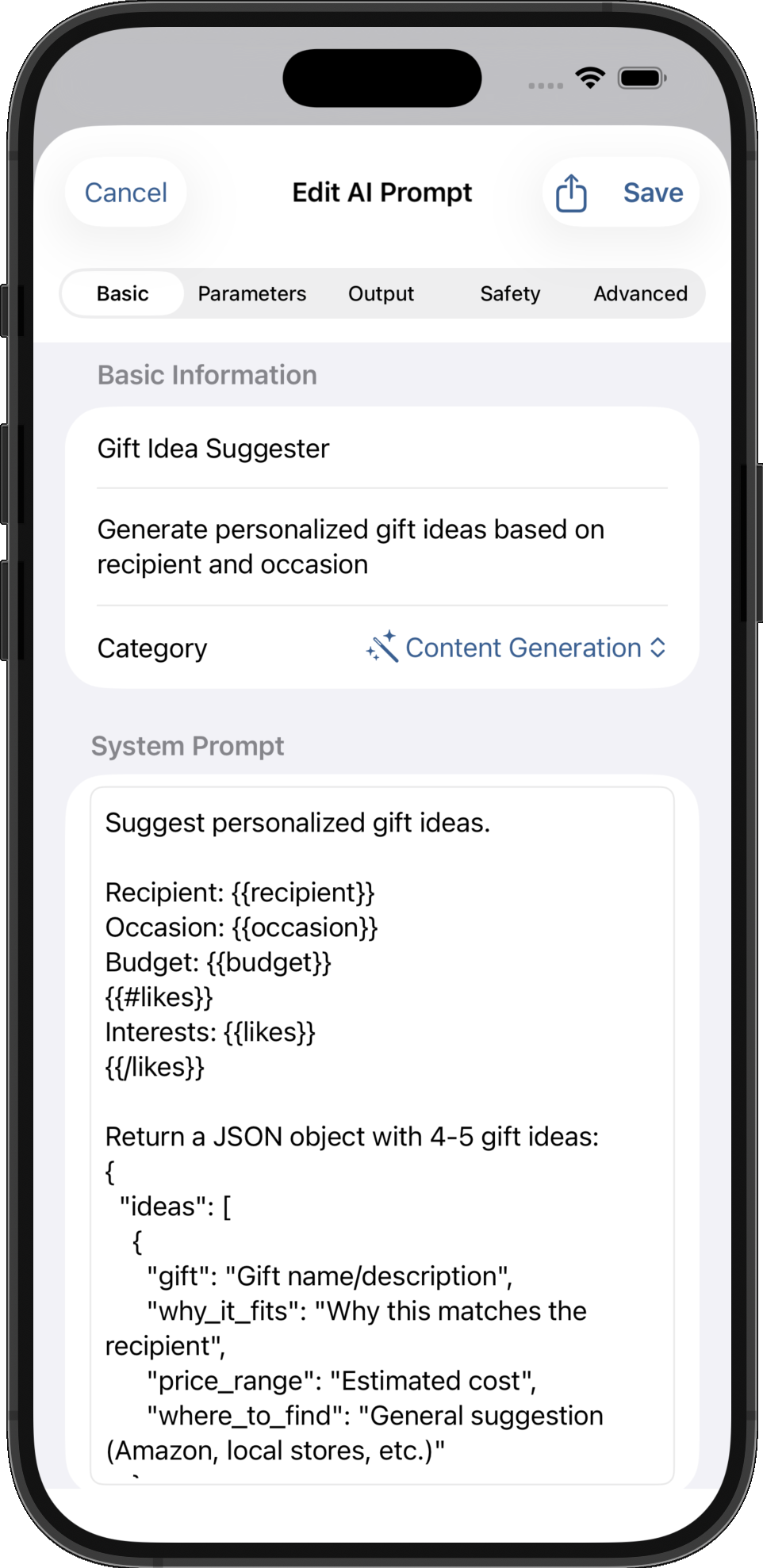
28 min read
Apple Intelligence Prompt Editor: 30+ Free Templates
By Shortcut Actions Team
|Published Tuesday, December 16, 2025
You've created 15 shortcuts powered by Apple Intelligence, and now you're copy-pasting the same prompts across all of them. When you need to update the tone or fix a typo, you have to manually edit each shortcut one by one. The tiny text field in the native Shortcuts app makes editing painful, and you have no idea if you're about to exceed the 4,096 token limit until it fails.
Sound familiar? You're not alone.
In this comprehensive guide, you'll learn how to transform your Apple Intelligence workflow from chaotic copy-paste hell into a professional prompt management system with reusable templates, dynamic variables, and real-time token estimation—all while keeping your data completely private on your device.
Why Managing Apple Intelligence Prompts in Shortcuts Is So Difficult
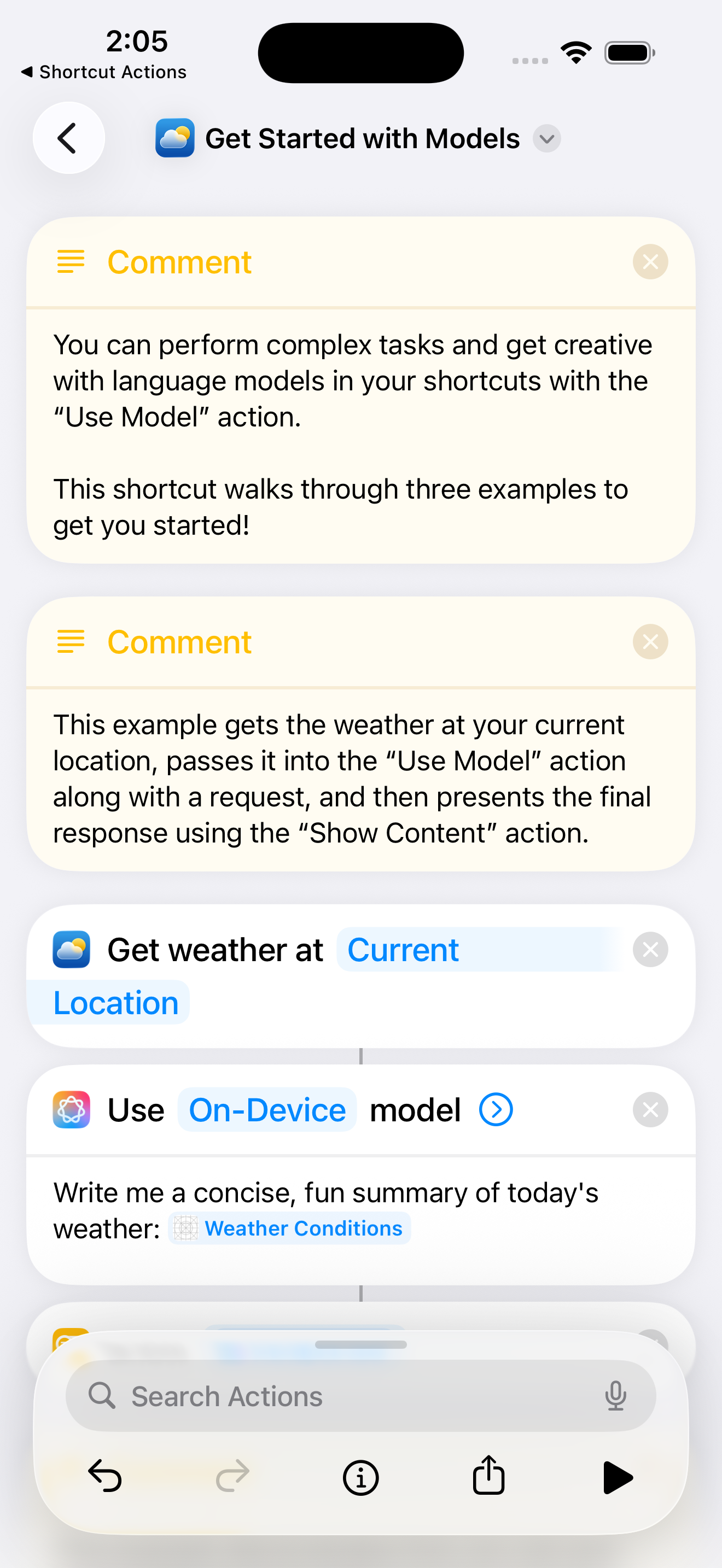
The native "Use Model" action in Apple Shortcuts is perfect for simple, one-off AI tasks. But the moment you start building serious automation workflows, you'll hit these frustrating limitations.
The Tiny Text Field Problem
Try editing a 500-character prompt in the Shortcuts app's text field. You can't see the full context, scrolling is awkward, and making changes without introducing errors is nearly impossible.
When your prompt includes multiple instructions, examples, and context, that tiny text field becomes a productivity killer. You're essentially editing a professional document in a space designed for a single sentence.
No Reusability Across Shortcuts
You've crafted the perfect email response prompt in Shortcut A. Now you need that same prompt in Shortcut B for a different trigger. Your only option? Copy-paste.
This creates several problems:
- Version drift: You improve the prompt in one shortcut but forget to update the others
- Inconsistent results: Similar shortcuts produce different outputs because prompts don't match
- Wasted time: You spend minutes hunting down which shortcut has the "good version" of the prompt
Token Limit Awareness: The 4,096 Problem
Apple Intelligence has a combined input and output limit of 4,096 tokens. If your prompt uses 3,500 tokens, you only have ~596 tokens left for the AI's response.
The native Shortcuts app gives you zero warning until your shortcut fails at runtime. You have no way to estimate token count while building your automation, leading to frustrating trial-and-error debugging sessions.
Token estimation tip: Roughly 4 characters = 1 token in English text. A 2,000-character prompt is approximately 500 tokens.
No Organization System
Where did you put that meeting notes summarizer prompt? Was it in the "Daily Automation" shortcut or "Work Tools"?
Without a centralized library or categorization system, your prompts are scattered across dozens of shortcuts. Finding and managing them becomes increasingly difficult as your automation collection grows.
The Hidden Cost of Poor Prompt Management
Let's calculate the real productivity drain:
Time waste: 5 minutes to find and copy-paste a prompt × 10 shortcuts = 50 minutes of wasted time
Error risk: Manual copy-paste introduces typos and inconsistencies. One character difference can completely change AI behavior.
Missed improvements: You discover a better way to phrase a prompt, but updating it across 8 different shortcuts feels like too much work—so you don't. Your shortcuts stay suboptimal.
Emotional drain: Imagine finally perfecting your email tone across all shortcuts, then realizing you need to manually update each one. The frustration alone kills motivation to iterate and improve.
What Professional AI Prompt Management Looks Like
The AI Prompt Editor in Shortcut Actions transforms prompt management from a painful chore into a streamlined system. Here's what changes:
Reusable Prompt Library
Create a prompt template once, use it across unlimited shortcuts. When you improve the template, all shortcuts using it automatically benefit from the update.
Your prompts live in a centralized library organized by category: Writing, Analysis, Extraction, Transformation, and Generation. Find what you need in seconds with search and category filters.
Dynamic Variables with {{variableName}} Syntax
Instead of hardcoding values, use dynamic variables that get filled in when the shortcut runs:
Write a {{tone}} email to {{recipient}} about {{topic}}.
Include these key points: {{details}}
At runtime, your shortcut provides the actual values:
tone: "professional"recipient: "Sarah"topic: "project deadline"details: "Need approval by Friday"
One template becomes infinitely flexible. No more creating separate prompts for "professional email," "casual email," and "urgent email."
Real-Time Token Estimation
See exactly how many tokens your prompt uses as you write it. The editor shows:
- Prompt tokens
- Output instruction tokens
- Example response tokens (if provided)
- Total with visual progress bar
Yellow warnings appear at 3,000+ tokens. Orange warnings at 3,500+. You'll never accidentally exceed the 4,096 limit again.
Category Organization System
Browse your prompt library by category:
- Writing: Email drafts, social posts, content creation
- Analysis: Sentiment detection, tone analysis, decision support
- Extraction: Parse events, contacts, receipts, structured data
- Transformation: Rewrite, simplify, change format
- Generation: Create Q&A, headlines, ideas, agendas
Each category uses intuitive icons and color coding for instant recognition.
Native Shortcuts vs. AI Prompt Editor Comparison
| Feature | Native Shortcuts | AI Prompt Editor |
|---|---|---|
| Editor Size | Tiny text field (3-4 lines) | Full-screen editor with syntax highlighting |
| Reusability | Copy-paste only | Create once, use everywhere |
| Variables | Manual text replacement | Dynamic {{variables}} with type enforcement |
| Token Awareness | None (fails at runtime) | Real-time estimation with warnings |
| Organization | Scattered across shortcuts | Centralized library with 6 categories |
| Templates | None | 30+ built-in, ready-to-use |
| Parameter Types | Text only | Text, Number, Boolean, Enumeration (dropdowns) |
| Export/Import | Not possible | .scprompt files, CloudKit sync |
Getting Started: Creating Your First AI Prompt Template
Let's walk through creating a professional email response template step by step.
Step 1: Opening the AI Prompt Editor
- Open the Shortcut Actions app
- Navigate to the Connections tab at the bottom
- Tap AI Prompts in the list
- Tap the + button in the top-right corner to create a new prompt
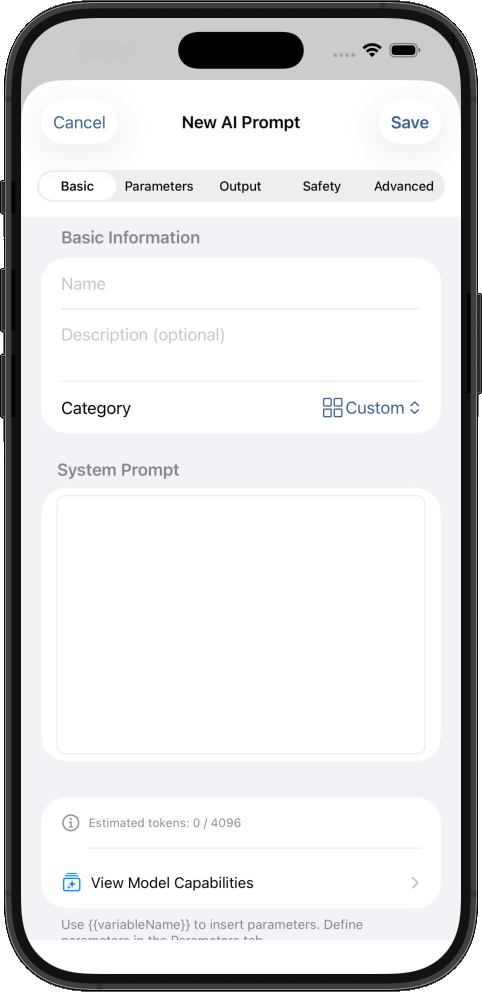
You'll see a clean, full-screen editor with five tabs: Basic, Parameters, Output, Safety, and Advanced.
Step 2: Writing Your System Prompt
In the Basic tab, you'll find a large text editor—much more comfortable than the native Shortcuts text field.
Here's an example email response prompt:
You are a professional email assistant. Write a {{tone}} email response to {{recipient}}.

Context: {{emailContext}}

Key points to address:
{{keyPoints}}

{{#deadline}}
Mention the deadline: {{deadline}}
{{/deadline}}

Keep the response concise and action-oriented.
Notice the variable syntax:
{{tone}}- Dynamic variable for email tone{{#deadline}}...{{/deadline}}- Conditional block (only included if deadline is provided)
As you type, the editor automatically detects variables and shows them as colored chips below the text area. If you reference a variable that doesn't have a matching parameter, you'll see a warning.
Step 3: Adding Dynamic Parameters
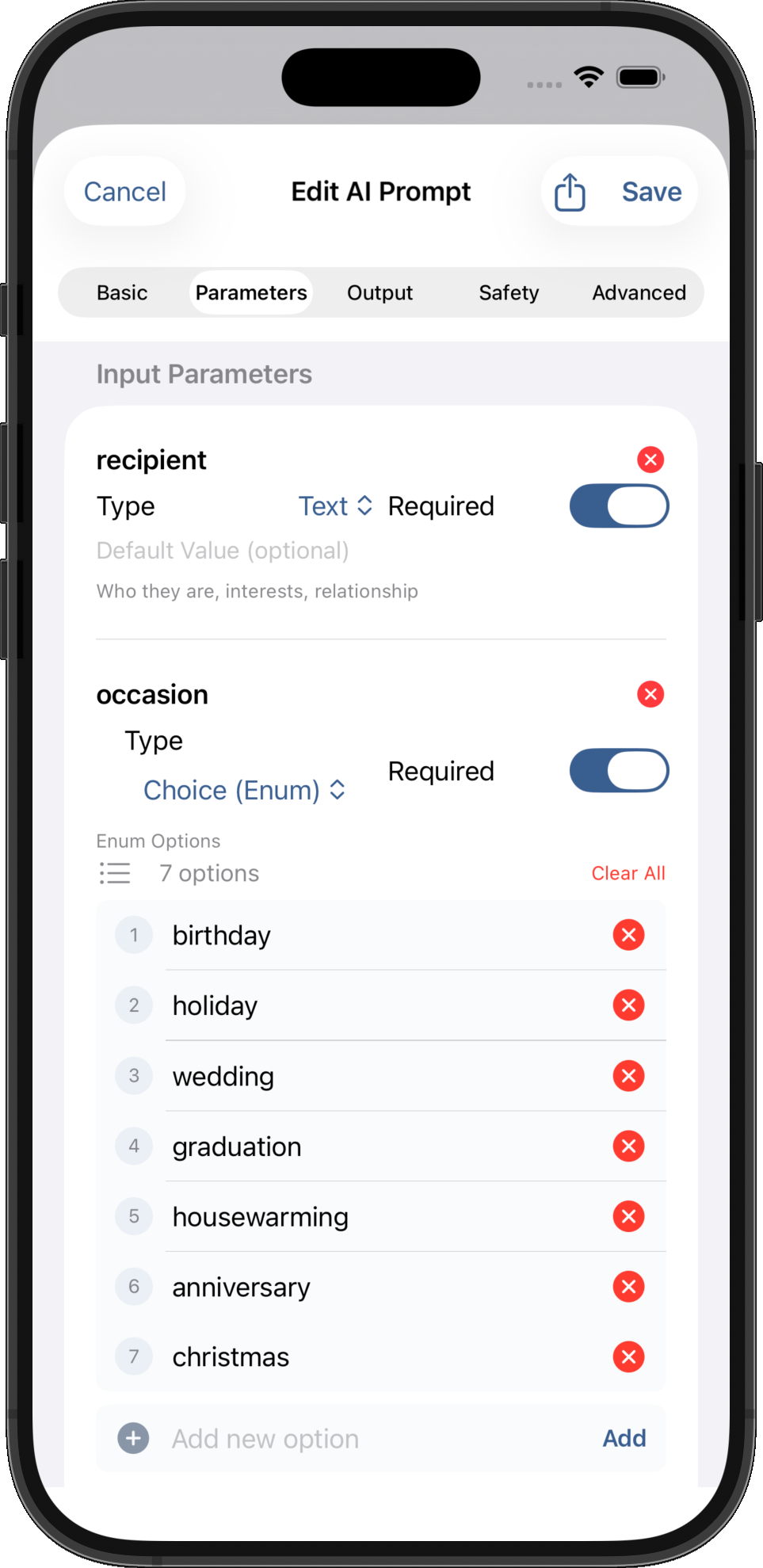
Switch to the Parameters tab to define each variable:
Parameter 1: tone
- Name: tone
- Type: Choice (Enumeration)
- Options: "professional", "friendly", "urgent"
- Required: Yes
- Default: "professional"
Parameter 2: recipient
- Name: recipient
- Type: Text
- Required: Yes
- Description: "Name of the email recipient"
Parameter 3: emailContext
- Name: emailContext
- Type: Text
- Required: Yes
- Description: "Summary of the email you're responding to"
Parameter 4: keyPoints
- Name: keyPoints
- Type: Text
- Required: Yes
- Description: "Bullet points you want to address"
Parameter 5: deadline
- Name: deadline
- Type: Text
- Required: No (optional)
- Description: "Deadline to mention, if any"
The Parameters tab validates in real-time:
- ✅ Green checkmark: All variables match parameters perfectly
- ⚠️ Yellow warning: Undefined variables (in prompt but no parameter)
- ⚠️ Orange warning: Unused parameters (defined but not in prompt)
Step 4: Checking Token Estimation
Switch to the Advanced tab to see token breakdown:
Prompt tokens:          287
Output instructions:     42
Total estimated:        329 / 4,096 tokens (8% used)
The visual progress bar shows you're well within limits. Since you're only using 329 tokens for the prompt, you have plenty of room (~3,767 tokens) for the AI's response.
Pro tip: Keep prompts under 3,000 tokens to leave adequate space for longer AI responses.
Step 5: Using Your Template in Shortcuts
Now your template is saved in the library. Here's how to use it in a shortcut:
- Open the Shortcuts app
- Create or edit a shortcut
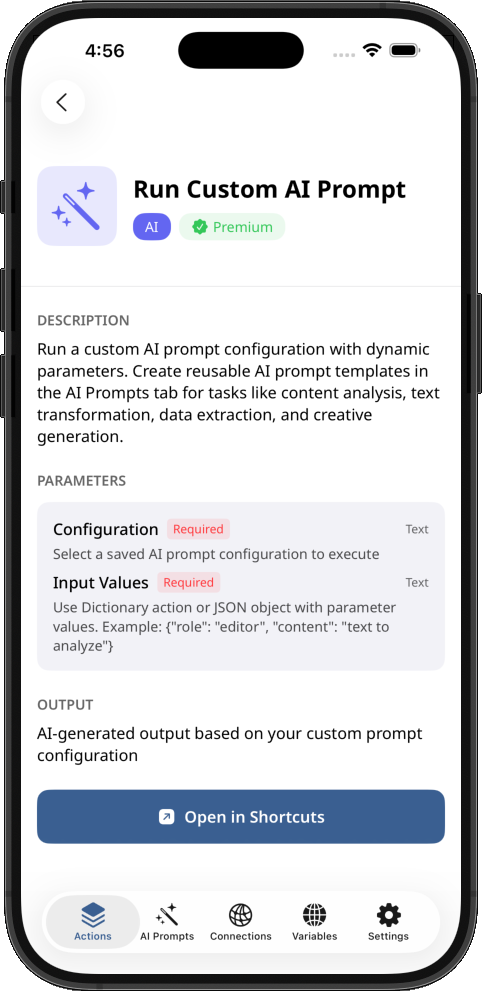
- Add the Run Custom AI Prompt action (from Shortcut Actions)
- Select your "Email Response Generator" template
- Provide values for each parameter using shortcut variables or text
Example shortcut flow:
Get text from Share Sheet (email body)
↓
Ask for Input (prompt: "Who is the recipient?")
↓
Run Custom AI Prompt: "Email Response Generator"
  - tone: "professional"
  - recipient: [Input result]
  - emailContext: [Share sheet text]
  - keyPoints: "Confirm meeting time, ask for agenda"
  - deadline: (leave empty if none)
↓
Copy to Clipboard
↓
Show notification: "Email draft ready!"
The power: Change your email tone across ALL shortcuts using this template by editing it once in the AI Prompt Editor. Every shortcut automatically gets the improvement.
Advanced Actions: Get AI Prompt & Get AI Prompt Details
Beyond the main "Run Custom AI Prompt" action, Shortcut Actions includes two helper actions for advanced workflows and debugging.
Get AI Prompt Action
Purpose: Build and return the final prompt string with all variables replaced—without actually executing Apple Intelligence.
Why use it?
- Debugging: Preview exactly what will be sent to Apple Intelligence before running
- Cross-platform use: Pass the generated prompt to ChatGPT, Claude, or other AI services
- Validation: Verify variable replacement is working correctly
- Transparency: See the complete prompt for documentation or review
How it works:
- Add Get AI Prompt action in Shortcuts
- Select your prompt configuration
- Provide values for each parameter (same as Run Custom AI Prompt)
- The action returns the complete, ready-to-use prompt string
Example workflow (debugging):
Get AI Prompt: "Email Response Generator"
  - tone: "professional"
  - recipient: "Sarah"
  - emailContext: "Meeting reschedule request"
  - keyPoints: "Confirm new time, ask for agenda"
↓
Returns: "You are a professional email assistant. Write a professional
email response to Sarah. Context: Meeting reschedule request..."
Example workflow (using with ChatGPT):
Get AI Prompt: "Email Response Generator"
  - tone: "professional"
  - recipient: "Sarah"
  - emailContext: "Meeting reschedule request"
  - keyPoints: "Confirm new time, ask for agenda"
↓
Ask ChatGPT (from ChatGPT app)
  - Prompt: [Result from Get AI Prompt]
↓
Returns: ChatGPT's response with your centralized template
This is particularly useful when debugging complex prompts with conditional blocks—you can see exactly which sections are included or excluded based on your inputs. It also enables you to use your managed prompt library with any AI service, keeping your templates consistent across Apple Intelligence, ChatGPT, Claude, and others.
Get AI Prompt Details Action
Purpose: Return detailed metadata about any AI prompt configuration as structured JSON.
Why use it?
- Dynamic workflows: Programmatically discover what parameters a prompt requires
- Documentation: Display configuration info to users before running
- Validation: Check parameter types and required fields before building input JSON
- Integration: Build sophisticated automation that adapts to different prompts
What it returns:
{
  "id": "uuid-string",
  "name": "Email Response Generator",
  "description": "Create professional email responses",
  "category": "Writing",
  "systemPrompt": "Raw template with {{variables}}",
  "estimatedTokens": 450,
  "parameters": [
    {
      "name": "tone",
      "type": "enumeration",
      "isRequired": true,
      "defaultValue": "professional",
      "description": "Email tone",
      "validOptions": ["professional", "friendly", "urgent"]
    },
    {
      "name": "recipient",
      "type": "text",
      "isRequired": true,
      "defaultValue": null,
      "description": "Name of the email recipient",
      "validOptions": null
    }
  ],
  "outputConfig": {
    "type": "text",
    "includeExampleInPrompt": false
  },
  "safetyMode": "balanced"
}
Advanced workflow example:
1. Get AI Prompt Details for "Email Analyzer"
   → Returns JSON with all parameter requirements

2. Get Dictionary from Input
   → Parse JSON to access parameters array

3. Repeat for each parameter:
   → If isRequired is true, ask user for input
   → If isRequired is false and defaultValue exists, use default
   → If type is "enumeration", show picker with validOptions

4. Build input JSON dynamically

5. Run Custom AI Prompt with the constructed inputs
This enables building truly dynamic shortcuts that can work with any prompt configuration—even ones you create in the future.
Three Actions, One Powerful System
| Action | Purpose | Executes AI? |
|---|---|---|
| Run Custom AI Prompt | Execute prompt and get AI response | Yes |
| Get AI Prompt | Preview final prompt with variables replaced | No |
| Get AI Prompt Details | Get configuration metadata as JSON | No |
Free tier note: All three actions work with free tier configurations. Premium limits only apply when creating new prompt configurations (2 for free, unlimited for Premium).
30+ Ready-to-Use Templates Across 6 Categories
Don't want to write prompts from scratch? Shortcut Actions includes a comprehensive template library to jumpstart your automation.
Writing Templates (11 Templates)
Email Draft Generator
- Create professional emails from bullet points
- Parameters: recipient, topic, tone, key points
- Perfect for: Customer service, business communication
Social Media Post Creator
- Platform-optimized content (Twitter, LinkedIn, Instagram)
- Parameters: platform, topic, style, character limit
- Perfect for: Content creators, marketers
Thank You Note Generator
- Personalized gratitude messages
- Parameters: recipient, occasion, specific thanks
- Perfect for: Networking, customer appreciation
Quick Reply Generator
- Context-aware short responses
- Parameters: message to reply to, tone
- Perfect for: Busy professionals, customer support
Birthday Note Generator
- Warm, personalized birthday wishes
- Parameters: recipient, relationship, personal touch
- Perfect for: Remembering special occasions
Polite Decline Generator
- Respectfully say no to requests
- Parameters: request type, reason (optional)
- Perfect for: Boundary setting, time management
Apology Crafter
- Sincere, professional apologies
- Parameters: situation, recipient, desired outcome
- Perfect for: Customer service, professional relationships
Follow-Up Message Generator
- Professional follow-up emails
- Parameters: previous conversation summary, ask
- Perfect for: Sales, networking, project management
Product Description Writer
- Compelling product copy
- Parameters: product name, features, target audience
- Perfect for: E-commerce, marketplace sellers
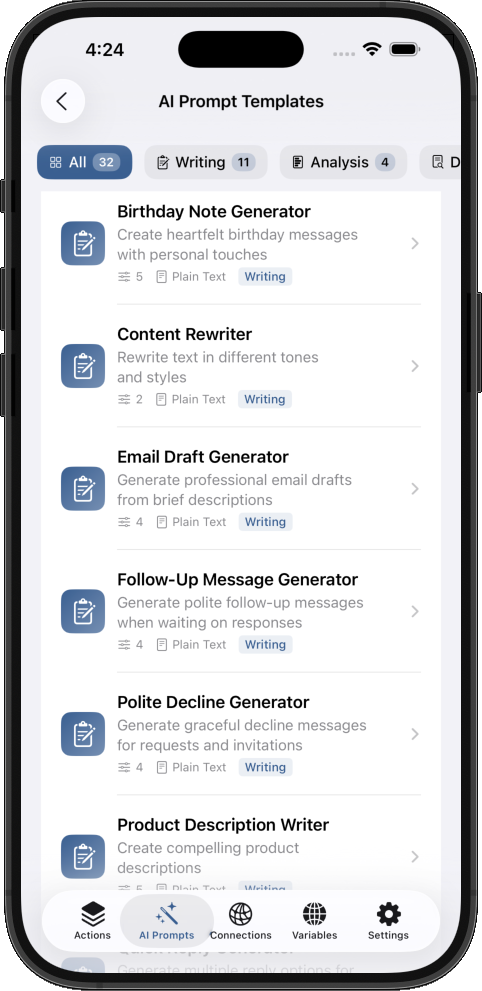
Content Rewriter
- Change tone or style of existing text
- Parameters: original text, target tone, audience
- Perfect for: Content repurposing, editing
Bio Generator
- Professional or casual bio creation
- Parameters: background, platform, tone
- Perfect for: LinkedIn, Twitter, personal sites
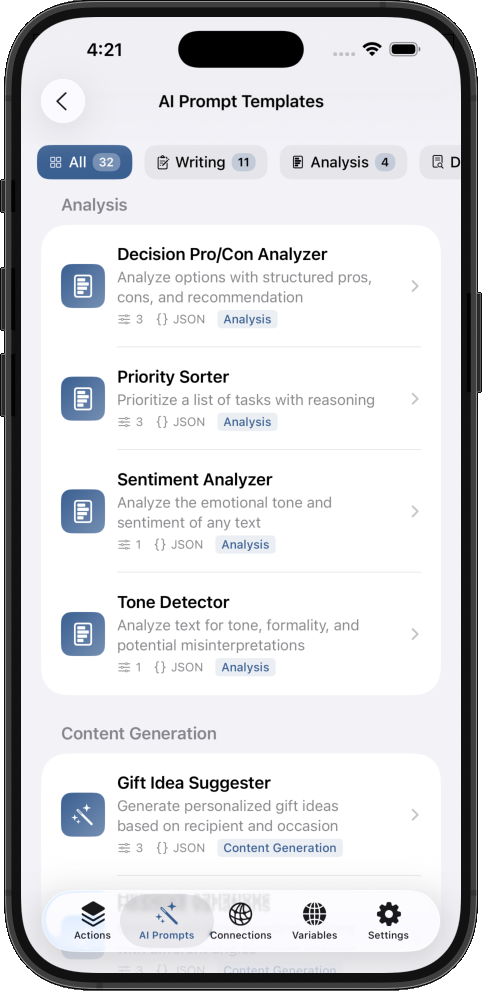
Analysis Templates (4 Templates)
Sentiment Analyzer
- Detect positive, negative, or neutral sentiment
- Parameters: text to analyze
- Perfect for: Customer feedback, social monitoring
Tone Detector
- Identify tone (professional, casual, urgent, etc.)
- Parameters: text to analyze
- Perfect for: Email review before sending
Decision Pro/Con Analyzer
- Balanced decision analysis
- Parameters: decision question, context
- Perfect for: Important choices, business decisions
Priority Sorter
- Rank items by importance and urgency
- Parameters: list of items, criteria
- Perfect for: Task management, project planning
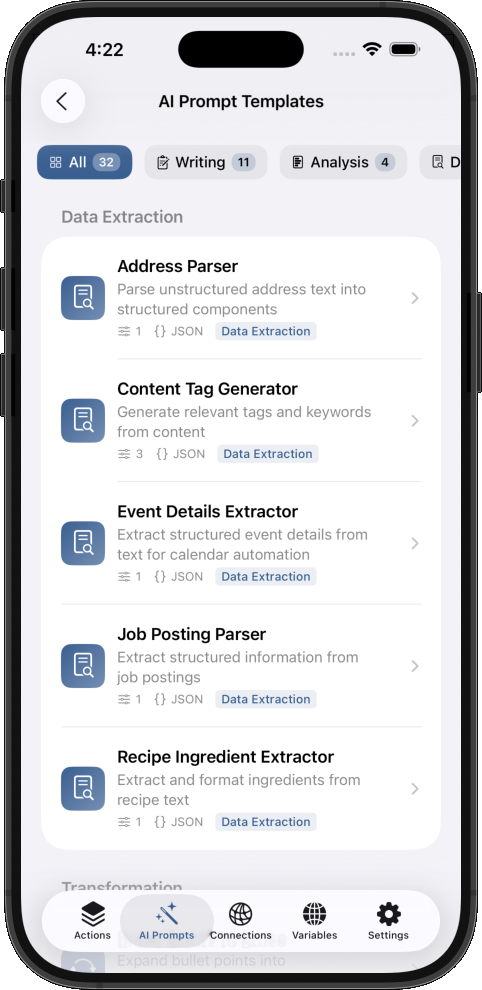
Extraction Templates (5 Templates)
Event Details Extractor
- Pull event info from text (date, time, location)
- Parameters: text containing event details
- Perfect for: Email → Calendar automation
Address Parser
- Extract structured address from text
- Parameters: text containing address
- Perfect for: Contact management, shipping
Job Posting Parser
- Extract job title, company, requirements, salary
- Parameters: job posting text
- Perfect for: Job hunting automation
Contact Info Extractor
- Pull name, email, phone from text/business cards
- Parameters: text containing contact info
- Perfect for: Networking, CRM entry
Recipe Ingredient Extractor
- Extract ingredients list from recipe
- Parameters: recipe text
- Perfect for: Grocery list automation
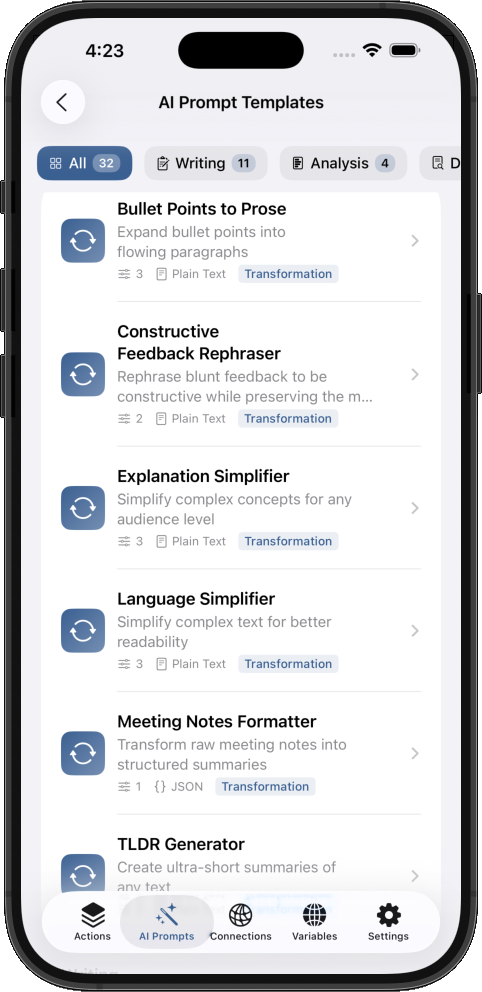
Transformation Templates (5 Templates)
Language Simplifier (ELI5)
- Explain complex topics simply
- Parameters: complex text, target age/expertise
- Perfect for: Teaching, accessibility
Bullet Points to Prose
- Convert notes into flowing paragraphs
- Parameters: bullet points, desired tone
- Perfect for: Reports, blog posts
Constructive Feedback Rephraser
- Make criticism constructive and kind
- Parameters: original feedback
- Perfect for: Management, code reviews
TLDR Generator
- Create concise summaries
- Parameters: long text, desired length
- Perfect for: Article summaries, meeting notes
Prose to Bullet Points
- Convert paragraphs to actionable bullets
- Parameters: paragraph text
- Perfect for: Note-taking, task lists
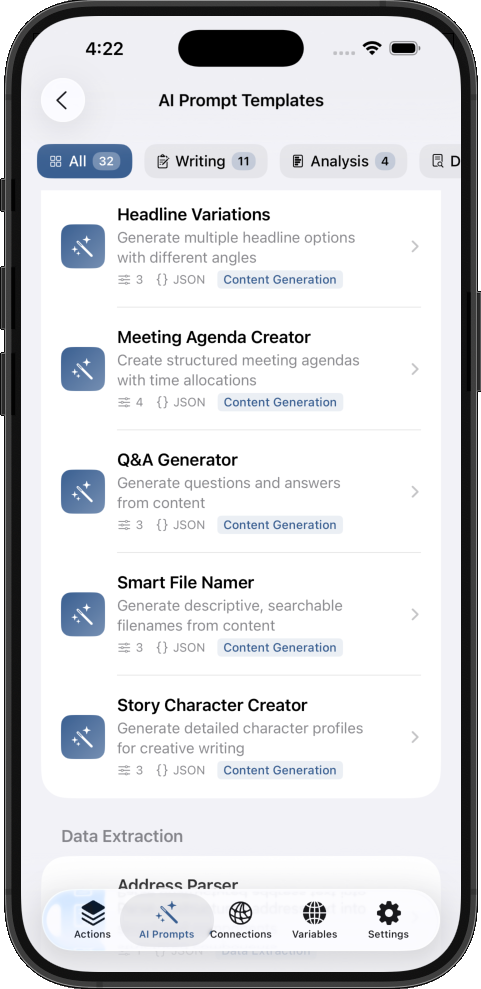
Generation Templates (6 Templates)
Q&A Generator
- Create questions and answers from content
- Parameters: topic, content, number of Q&As
- Perfect for: Study guides, FAQs
Story Character Creator
- Develop character profiles
- Parameters: genre, traits, role
- Perfect for: Creative writing
Meeting Agenda Creator
- Structure meeting plans
- Parameters: meeting purpose, attendees, duration
- Perfect for: Team leads, project managers
Headline Variations
- Generate multiple headline options
- Parameters: topic, tone, platform
- Perfect for: Content marketing, A/B testing
Smart File Namer
- Generate descriptive file names
- Parameters: file content summary
- Perfect for: Document organization
Gift Idea Suggester
- Personalized gift recommendations
- Parameters: recipient details, occasion, budget
- Perfect for: Holiday shopping, special occasions
Custom Template Creation
Beyond the built-in templates, you can create unlimited custom templates tailored to your specific workflows. Common custom templates users create:
- Meeting notes formatter: Convert rambling notes into structured summaries
- Invoice parser: Extract line items, totals, dates from receipts
- Code comment generator: Document code snippets (though Apple Intelligence isn't great at code)
- Workout logger: Parse workout descriptions into structured data
Template preview: Before using any template, tap it to see the full prompt, all parameters, and example outputs. This helps you understand exactly what it does before adding it to your library.
Real-World Use Cases: See It in Action
Let's look at three complete automation workflows that show the power of reusable AI prompt templates.
Use Case 1: Professional Email Response System
Scenario: A customer support team needs to maintain consistent tone and quality across hundreds of daily email responses.
Solution: Email Draft Generator template with standardized tone options
Complete Shortcut Workflow:
- Get email from Mail app or clipboard
- Ask for input: "What's the main issue?" (user selects from list: Billing, Technical, Feature Request)
- Ask for input: "Select tone" (Professional, Friendly, Apologetic)
- Run Custom AI Prompt: "Email Draft Generator"
- recipient: Extracted from email (use "Get Details of Email" → Sender Name)
- emailContext: Email body text
- tone: User's selection
- keyPoints: Pre-filled based on issue type (e.g., "Apologize for inconvenience, explain billing cycle, offer account review")
- Review draft in notification or show alert
- Copy to clipboard or send directly via Mail
Benefits:
- ✅ Consistent quality: All team members use the same well-crafted prompt
- ✅ 5x faster: Responses that took 10 minutes now take 2 minutes
- ✅ Easy updates: Improve the template once, everyone benefits
- ✅ Tone control: Ensure professional communication every time
Use Case 2: Meeting Notes to Action Items Pipeline
Scenario: After meetings, you have rambling notes that need to become structured tasks with deadlines in your reminder app.
Solution: Custom "Meeting Action Extractor" template
Complete Shortcut Workflow:
- Get note from Notes app (select from list or most recent)
- Run Custom AI Prompt: "Meeting Action Extractor"
- meetingNotes: Note content
- outputFormat: "JSON"
- Parse JSON response to extract:
- Action items array
- Assigned person (if mentioned)
- Deadline (if mentioned)
- Priority level
- Repeat for each action item:
- Create reminder in Reminders app
- Set due date (if deadline extracted)
- Add note with context
- Show summary: "Created 5 action items from meeting notes"
Template Example:
Extract action items from these meeting notes and output as JSON.

Meeting Notes:
{{meetingNotes}}

For each action item, identify:
- task: What needs to be done
- assignee: Who should do it (if mentioned)
- deadline: When it's due (if mentioned)
- priority: High/Medium/Low based on context

Output format:
{
  "actionItems": [
    {
      "task": "...",
      "assignee": "...",
      "deadline": "...",
      "priority": "..."
    }
  ]
}
Benefits:
- ✅ Structured data: JSON output integrates seamlessly with Shortcuts
- ✅ Time saver: 15-minute manual task becomes 30 seconds
- ✅ Nothing forgotten: AI catches action items you might miss
- ✅ Flexible: Works for any meeting type (standup, 1-on-1, planning)
Use Case 3: Content Creation Workflow for Multiple Platforms
Scenario: Social media manager needs to post the same content idea across Twitter, LinkedIn, and Instagram with platform-specific optimization.
Solution: Social Media Post Creator template with platform enumeration
Complete Shortcut Workflow:
- Ask for input: "What's your content topic?"
- Repeat 3 times (once per platform):
- Run Custom AI Prompt: "Social Media Post Creator"
- topic: User's input
- platform: "Twitter" (then "LinkedIn", then "Instagram")
- tone: "engaging"
- includeHashtags: "yes"
- Save result to separate variables (twitterPost, linkedInPost, instagramPost)
- Run Custom AI Prompt: "Social Media Post Creator"
- Show menu: "Which would you like to copy?"
- Twitter version
- LinkedIn version
- Instagram version
- All three
- Copy selection to clipboard
- Show notification: "Post ready to paste!"
Platform-Specific Optimization:
- Twitter: 280 characters, concise, trending hashtags
- LinkedIn: Professional tone, longer format, career-focused hashtags
- Instagram: Visual description, emoji-friendly, lifestyle hashtags
Benefits:
- ✅ Platform optimization: Each version suits its audience
- ✅ Consistent messaging: Core idea stays the same
- ✅ Time multiplier: 3 posts in the time it takes to write 1
- ✅ Quality maintained: AI ensures each version is well-written
Export, Import, and Sync Your Prompts
Your AI prompt templates are valuable intellectual property. Shortcut Actions gives you multiple ways to protect, share, and sync them.
The .scprompt File Format
Every prompt configuration can be exported as a .scprompt file—a JSON bundle containing:
- Full prompt template with variables
- All parameter definitions (types, options, defaults)
- Output configuration
- Safety settings
- Metadata (created date, version)
Use cases for export:
- Backup: Save important prompts to iCloud Drive or external storage
- Sharing: Send prompts to teammates or the community
- Version control: Keep copies of prompts before major changes
- Migration: Move prompts between devices manually
How to export:
- In the AI Prompts list, swipe left on any prompt
- Tap Share
- Choose destination: AirDrop, Messages, Files app, email
- The
.scpromptfile is created automatically
CloudKit Sync Across Devices
If you have multiple Apple devices (iPhone, iPad, Mac with Apple Silicon), your prompts automatically sync via CloudKit—no manual export needed.
Requirements:
- Same iCloud account on all devices
- Shortcut Actions installed on each device
- iCloud Drive enabled
What syncs:
- All custom prompts you create
- Modifications to built-in templates (if you duplicate and edit them)
- Categories and organization
What doesn't sync:
- App settings and preferences
- Shortcut Actions Premium status (tied to App Store account)
Privacy note: CloudKit sync is end-to-end encrypted. Apple cannot read your prompt contents.
Sharing Templates with Your Team
For teams using Shortcut Actions, prompt sharing enables standardization:
Scenario: Marketing team wants everyone using the same social media templates
Process:
- Template creator exports the
.scpromptfile - Share via company Slack, email, or shared drive
- Team members tap the
.scpromptfile on their iPhone/iPad - iOS prompts: "Open in Shortcut Actions?"
- Tap Open → Template automatically imports
- Everyone now has the same template
Benefits for teams:
- ✅ Consistency: Everyone uses approved prompts
- ✅ Quality control: Review prompts before distribution
- ✅ Onboarding: New team members get starter templates instantly
- ✅ Version management: Update and redistribute improved versions
Best Practices for Apple Intelligence Prompt Templates
Follow these guidelines to get the most out of your AI prompt management system.
Keep Prompts Under 3,000 Tokens
While the limit is 4,096 tokens (input + output combined), aim for prompts under 3,000 tokens to leave room for substantial AI responses.
Why this matters: If your prompt uses 3,800 tokens, the AI only has ~296 tokens for its response—about 75 words. That's barely enough for a meaningful answer.
How to reduce token count:
- Use variables to inject context dynamically instead of including full examples
- Be concise: "Summarize in 3 bullets" instead of "I would like you to please summarize the following in three concise bullet points"
- Remove unnecessary instructions that Apple Intelligence already follows (like "be helpful")
Good example:
Summarize: {{content}}
Length: {{maxWords}} words
Format: bullet points
Bad example (token-heavy):
I would like you to please carefully read through the following content
and provide a comprehensive yet concise summary that captures the main
points and key takeaways. The summary should be approximately {{maxWords}}
words in length and formatted as bullet points for easy reading.

Content to summarize:
{{content}}
Both accomplish the same goal, but the good example uses ~60% fewer tokens.
Use Variables for Flexibility
One well-designed template with variables is more powerful than dozens of hardcoded variations.
Instead of creating:
- "Professional email to client"
- "Casual email to client"
- "Urgent email to client"
- "Professional email to colleague"
- "Casual email to colleague"
Create one template:
Write a {{tone}} email to {{recipientType}}.

Topic: {{topic}}
Key points: {{points}}
Parameters:
tone: Choice (professional, casual, urgent)recipientType: Choice (client, colleague, manager, vendor)topic: Textpoints: Text
Now you have infinite combinations from a single template. Update the template once, improve all variations instantly.
Test with Edge Cases
Before relying on a prompt template in production, test it with challenging inputs:
Empty variables: What happens if an optional parameter is left blank?
- Use conditional blocks:
{{#deadline}}Deadline: {{deadline}}{{/deadline}}
Very long input: What if {{emailBody}} is a 2,000-word email?
- Add instruction: "If content exceeds 500 words, focus on the first and last paragraphs"
Special characters: Test with emails containing emojis, code snippets, or foreign languages
- Apple Intelligence handles most gracefully, but verify output quality
Multiple languages: If you work internationally, test prompts with non-English input
- Add: "Respond in the same language as the input"
Organize by Use Case, Not Technical Details
Good organization (use case-based):
- Category: "Customer Support"
- Email response template
- Ticket summarizer
- Escalation detector
Bad organization (technical):
- Category: "3-Parameter Prompts"
- Category: "JSON Output Prompts"
- Category: "Under 500 Tokens"
Organize how you think about your work, not how the system works. You'll find prompts faster and understand their purpose at a glance.
Leverage Conditional Blocks for Context-Aware Prompts
Conditional blocks make prompts smarter by including content only when relevant.
Syntax:
{{#variableName}}
  This content appears only if variableName has a value
{{/variableName}}
Example: Event invitation email
Write an invitation to {{eventName}} on {{date}}.

{{#location}}
Location: {{location}}
{{/location}}

{{#virtualLink}}
Join virtually: {{virtualLink}}
{{/virtualLink}}

{{#dresscode}}
Dress code: {{dresscode}}
{{/dresscode}}

RSVP by {{rsvpDate}}.
Result when location is provided but virtualLink is empty:
Write an invitation to Annual Gala on December 20th.

Location: Grand Ballroom, 123 Main St

Dress code: Formal

RSVP by December 10th.
The virtual link section is automatically omitted because virtualLink was empty. No need to create separate templates for in-person vs. virtual events.
Frequently Asked Questions
Does the AI Prompt Editor work with ChatGPT or Claude?
Yes! While the AI Prompt Editor is designed primarily for Apple Intelligence, you can use your prompt templates with ChatGPT, Claude, or any other AI service.
How it works:
- Use the Get AI Prompt action to fetch your configured prompt with all variables replaced
- Pass the resulting prompt text to the native Use Model action (for Apple Intelligence) or the ChatGPT actions (if you have the ChatGPT app installed)
- Alternatively, use Shortcut Actions' API Configuration features to connect directly to OpenAI, Anthropic, or other cloud AI providers
Example workflow for ChatGPT:
Get AI Prompt: "Email Response Generator"
  - tone: "professional"
  - recipient: "Sarah"
  - emailContext: "Meeting request"
↓
Ask ChatGPT (from ChatGPT app actions)
  - Prompt: [Result from Get AI Prompt]
↓
Returns: ChatGPT's response
This gives you the best of both worlds: centralized prompt management with the flexibility to use any AI model. Your templates, variables, and organization stay consistent regardless of which AI service you choose.
For maximum privacy and zero API costs, use Apple Intelligence. For advanced capabilities or longer context windows, route your prompts to ChatGPT or Claude.
Can I use AI prompts offline?
Yes, completely! Since Apple Intelligence runs entirely on your device, all AI prompt templates work offline. Your iPhone processes everything locally—no internet connection required.
This is a major advantage over cloud AI services (ChatGPT, Claude, OpenAI) which require active internet and send your data to external servers.
Offline workflow:
- Create and save prompt templates (requires internet for CloudKit sync, but templates stay cached)
- Run prompts in Shortcuts (works 100% offline)
- Get results instantly (no API latency)
Perfect for travel, areas with poor connectivity, or privacy-sensitive work.
How do I import prompts from other apps or users?
Currently, you can import prompts in two ways:
1. Import .scprompt files:
- Someone shares a
.scpromptfile with you (via AirDrop, email, Messages, etc.) - Tap the file on your iPhone or iPad
- iOS asks: "Open in Shortcut Actions?"
- Tap Open → Prompt automatically imports to your library
2. Manual recreation:
- Copy the prompt text from another source
- Create a new prompt in the AI Prompt Editor
- Paste the text into the system prompt field
- Define parameters manually based on variables (the editor auto-detects
{{variableName}}patterns)
There's currently no direct import from other prompt management apps, but the manual process is quick thanks to automatic variable detection.
Can I backup my prompts?
Yes, three ways:
1. CloudKit automatic sync (recommended):
- Enabled by default if you're signed into iCloud
- Prompts sync across all your Apple devices
- End-to-end encrypted
- No manual backup needed
2. Manual export to Files:
- Swipe left on any prompt → Share
- Save to iCloud Drive, Dropbox, or local Files app
- Creates a
.scpromptfile you can restore anytime
3. Bulk export (Premium feature):
- Export all prompts at once as a folder of
.scpromptfiles - Perfect for comprehensive backups before major changes
Recovery: If you lose a device or need to restore, simply:
- Sign into iCloud on new device (CloudKit restores automatically), OR
- Import
.scpromptfiles from your backup location
Does this use my Apple Intelligence processing quota?
Apple Intelligence is free and unlimited—there are no quotas, usage limits, or throttling. You can run prompts as many times as you want without restrictions.
This is another major advantage over cloud AI:
- ChatGPT: Rate limits (3 messages per 5 minutes on free tier)
- Claude: Message limits (varies by subscription)
- OpenAI API: Pay per token
With Apple Intelligence, run 1,000 prompts a day at zero cost.
Get Started with Professional AI Prompt Management Today
Managing Apple Intelligence prompts doesn't have to mean endless copy-pasting, tiny text fields, and token limit failures. With the AI Prompt Editor in Shortcut Actions, you get:
- ✅ Reusable template library with 30+ built-in templates across 6 categories
- ✅ Dynamic variables with
{{variableName}}syntax for infinite flexibility - ✅ Real-time token estimation to avoid the 4,096 limit
- ✅ Full-screen editor that's actually comfortable to use
- ✅ CloudKit sync across iPhone, iPad, and Mac
- ✅ Export/import via
.scpromptfiles for sharing and backup - ✅ 100% private with on-device processing
- ✅ Zero API costs (completely free with Apple Intelligence)
Download Shortcut Actions Now
Transform your AI automation workflow from chaotic to professional. Create your first reusable prompt template in under 5 minutes.
Download Shortcut Actions from the App Store →
Want to Learn More About Apple Intelligence?
New to Apple Intelligence in Shortcuts? Start with our beginner's guide:
How to Use Apple Intelligence in Your Shortcuts →
Learn the basics of the "Use Model" action, device requirements, token limits, and best practices before diving into advanced prompt management.
Questions or Need Help?
Visit our Support page for device compatibility information, troubleshooting guides, and contact options. We're here to help you build better automations.
Ready to stop copy-pasting prompts? Download Shortcut Actions today and explore the AI Prompt Templates library. Your future self will thank you.
Share this article:
Shortcut Actions Team
Building powerful iOS automation tools to help you work smarter.